Cafe24 design edits
One line in the chat is all it takes — the AI edits your Cafe24 shop design directly. No coding needed. "Change this color" is enough.
#What can you edit?
Shopzy doesn't only edit design. One line in the chat also handles store operations — products, orders, and more.
Design — you can do this
- Main, product, board, and promotion pages — design across all of them
- Visual elements: colors, fonts, font sizes, spacing, alignment
- Adding, replacing, or removing banners, popups, and event areas
- Category menus, headers, and footers
- Different layouts for desktop vs. mobile
Store operations — this works too
- Look up products and stock (including per-option stock), check product details
- Edit selling price, product name, display/selling status; add or change options
- Browse order lists and shipping status (by date and order status)
- Look up member (customer) info
- Manage categories and product display
- Set search-engine (SEO) visibility for products, categories, and boards
This is harder
- Changing payment-method or settlement settings — you can view and process orders and shipping, but the payment gateway and settlement config itself can't be changed
- Embedding external ad pixels like Google Ads or Meta
- Domain or SSL configuration
#Specific vs. vague requests
Works well — clear about what to change and how
- "Change the main banner to a deep navy"
- "Shrink the footer company info text to 12px"
- "Add a 'SALE' badge above the price on the product detail page"
Vague — missing the where or the how
- "Make the design prettier"
- "Make it more emotional"
#Examples
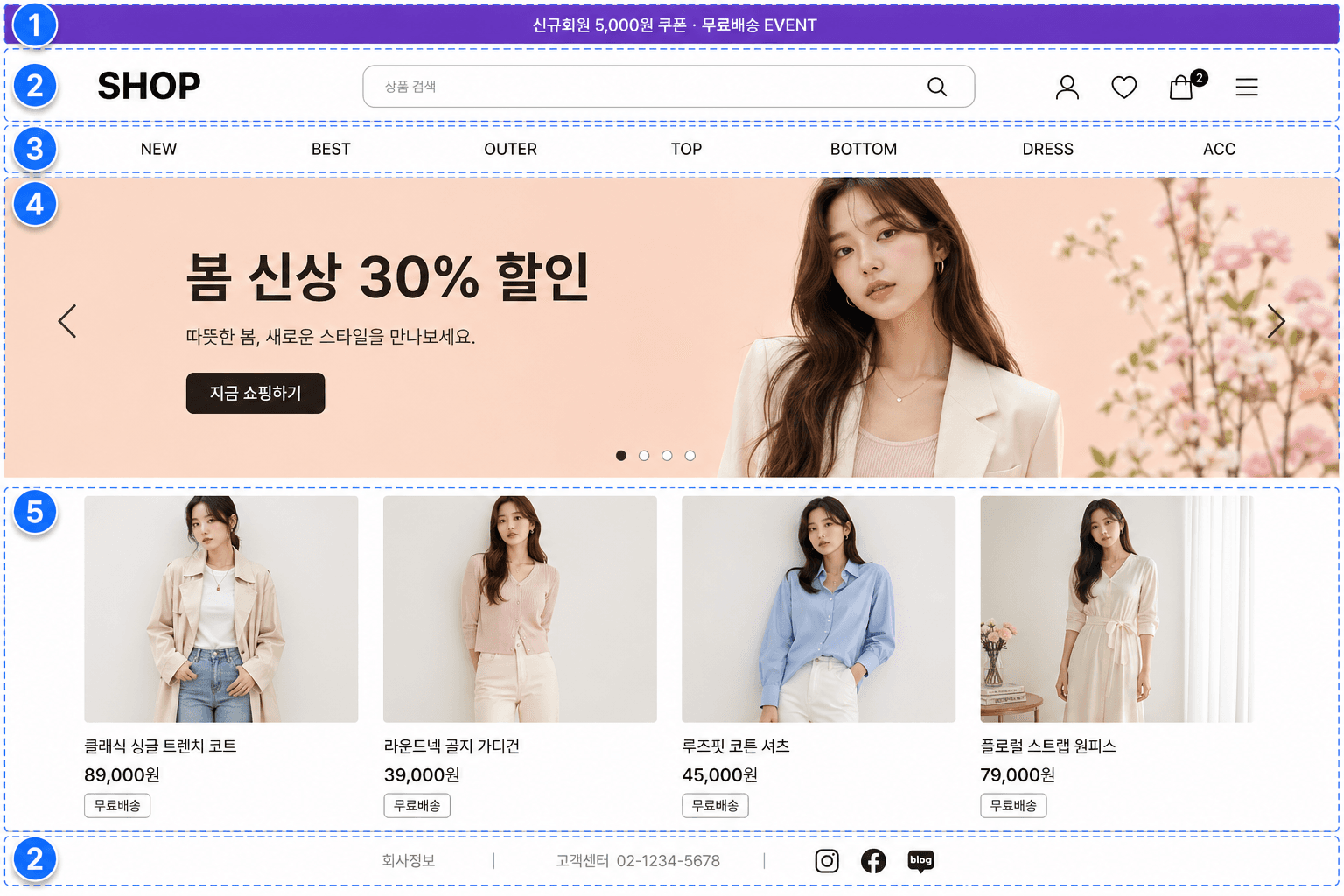
Add a popup or ribbon banner
Show first-visit popups, top ribbon banners, and event notices.
Add a ribbon banner at the very top saying 'New member ₩5,000 coupon' — deep purple background, white textTidy the header (top) and footer (bottom)
Adjust the top and bottom strips that show on every page.
Make the header a bit slimmer and center the logoPolish the category menu
Tune the font, spacing, and hover effect of the top category menu.
Make the category menu text smaller and cleaner, with an underline on hoverRefresh the main banner
Change the image, copy, and color of the banner at the very top of the homepage.
Make the main banner feel like spring. Light apricot background, copy 'Spring new arrivals 30% off'Refine the product detail layout
Adjust the position and size of price, options, buy button, and description.
On the product detail page, make the price stand out larger, and add a 'Free shipping' badge below it
#Products and orders, one line at a time
Beyond design, the day-to-day operations you used to click through in the admin can be done straight from the chat. Just ask, or tell it to change something.
- "Show every option with 5 or fewer in stock"
- "Show today's orders"
- "Raise summer dress prices by ₩5,000 each"
- "Add an 'XL' option to this product"
- "How many orders are ready to ship?"
- "Show me only the sold-out products"
#After it's done
The result shows up in the chat. Take a look on your live shop, and if you like it, you're done — if not, follow up in the chat to tweak it.
If something looks off → Built to be safe