Install & use the extension
The Chrome extension automates the whole flow — creating a Cafe24 developer app and handing its Client ID and Secret to Shopzy — for you.
Installation flow preview
Preview the real screen flow from download through Cafe24 test installation and Shopzy connection confirmation before you start.
Capture 1 / 20
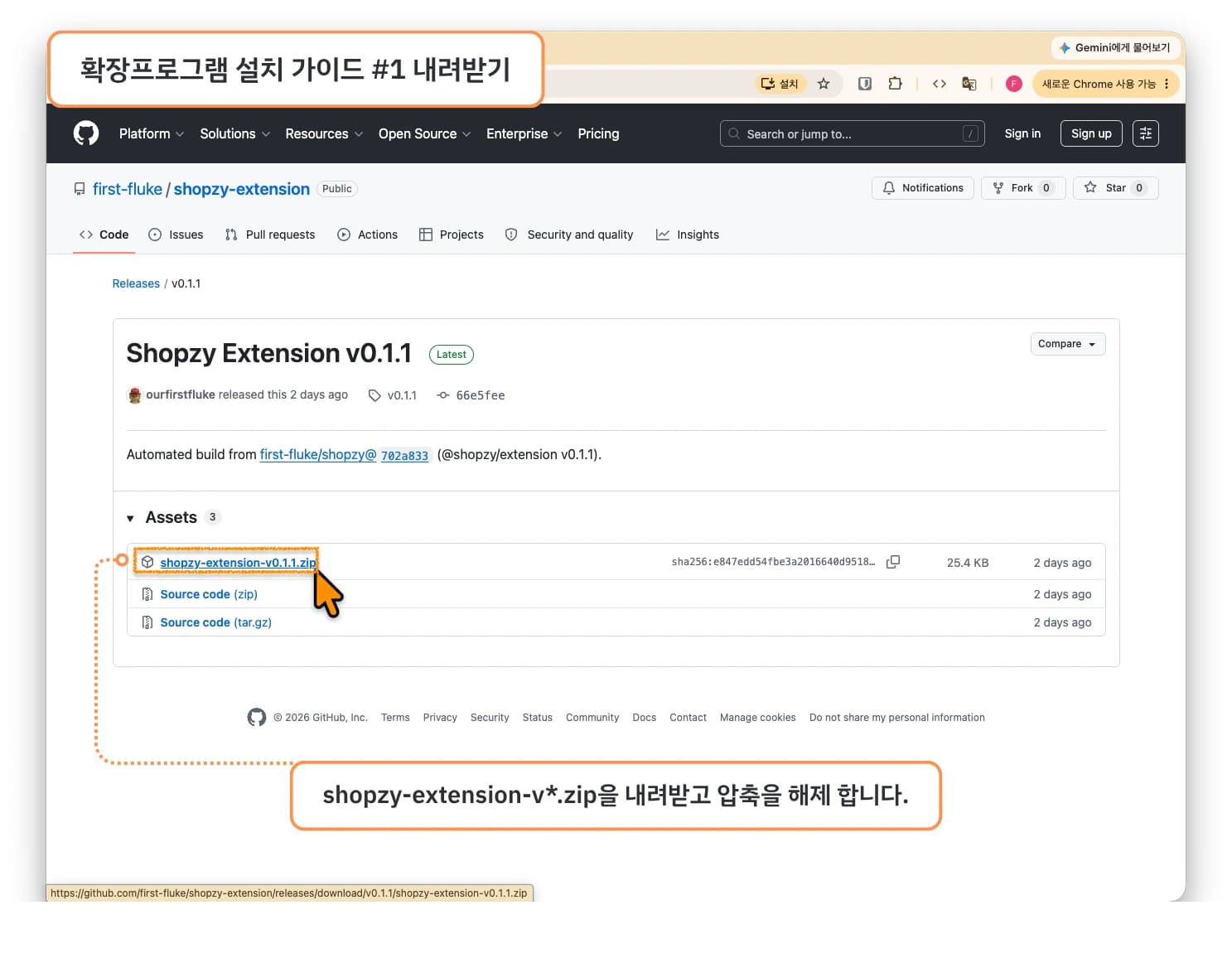
#1. Download
Download the zip from Releases
- Open the shopzy-extension releases page.
- Under Assets on the latest release, download
shopzy-extension-v*.zip. - Unzip it. You'll get a folder — keep it somewhere you won't delete (removing the folder uninstalls the extension).
Install in Chrome
- Go to
chrome://extensionsin the address bar. - Turn on Developer mode (top right).
- Click Load unpacked and select the folder you just unzipped.
- You're done once the Shopzy icon appears in the toolbar. If it doesn't, click the puzzle (🧩) icon and pin it.
- Go to
#2. What you need — a Shopzy API key
Issue an API key
In Shopzy, go to Integrations → API keys and issue a key. It starts with
shopzy_sk_. Copy it — you'll paste it into the extension shortly.
#3. Use it
Open the Developer Center and the extension
- Go to the Cafe24 app management page (you'll need to be signed in to the Cafe24 Developer Center).
- Click the Shopzy icon in the toolbar to open the popup.
Fill in the fields
- [Mall ID] — your Cafe24 shop ID.
- [App URL] / [Redirect URI] — leave the defaults.
- Expand [Shopzy integration settings] at the bottom and enter the Shopzy API URL and the API key (
shopzy_sk_…) from above. - Click [Save variables]. (They persist for next time.)
That's all the setup you need.
Connect
Click [Connect] and the extension runs the steps in order:
- Finds the
shopzy-<mall-id>app — or creates it if missing - Fills in the App URL, Redirect, and Design API scopes
- Saves, then generates a Secret
- Captures the Client ID and Secret
The page navigates a few times, but it continues automatically — just wait for it to finish.
- Finds the
Send to Shopzy
When capture finishes, the credentials show up in the popup. Click [Send to Shopzy] to register them. You can now use Cafe24 in the chat.
Run the test install and confirm connection
Scroll to the bottom of the Cafe24 app management screen and click [Test run]. Enter the mall ID, click [Run], and wait for the install-complete screen. Then return to Shopzy and confirm the Cafe24 developer app status under Integration settings changed to [Connected].