Connect Cafe24
To use the chat, connect your Cafe24 shop to Shopzy once. Add your shop and register SFTP — two steps and you're done.
Add your shop in Shopzy
- From the Shopzy dashboard, click [Add shop].
- Pick [Cafe24].
- Enter your Cafe24 ID — the same ID you use to sign in to the Cafe24 admin.
- Click [Connect]. You'll move to the chat screen and the SFTP registration modal opens automatically.
Register your SFTP password
Editing design files requires an SFTP connection. Fill in the modal that pops up automatically.
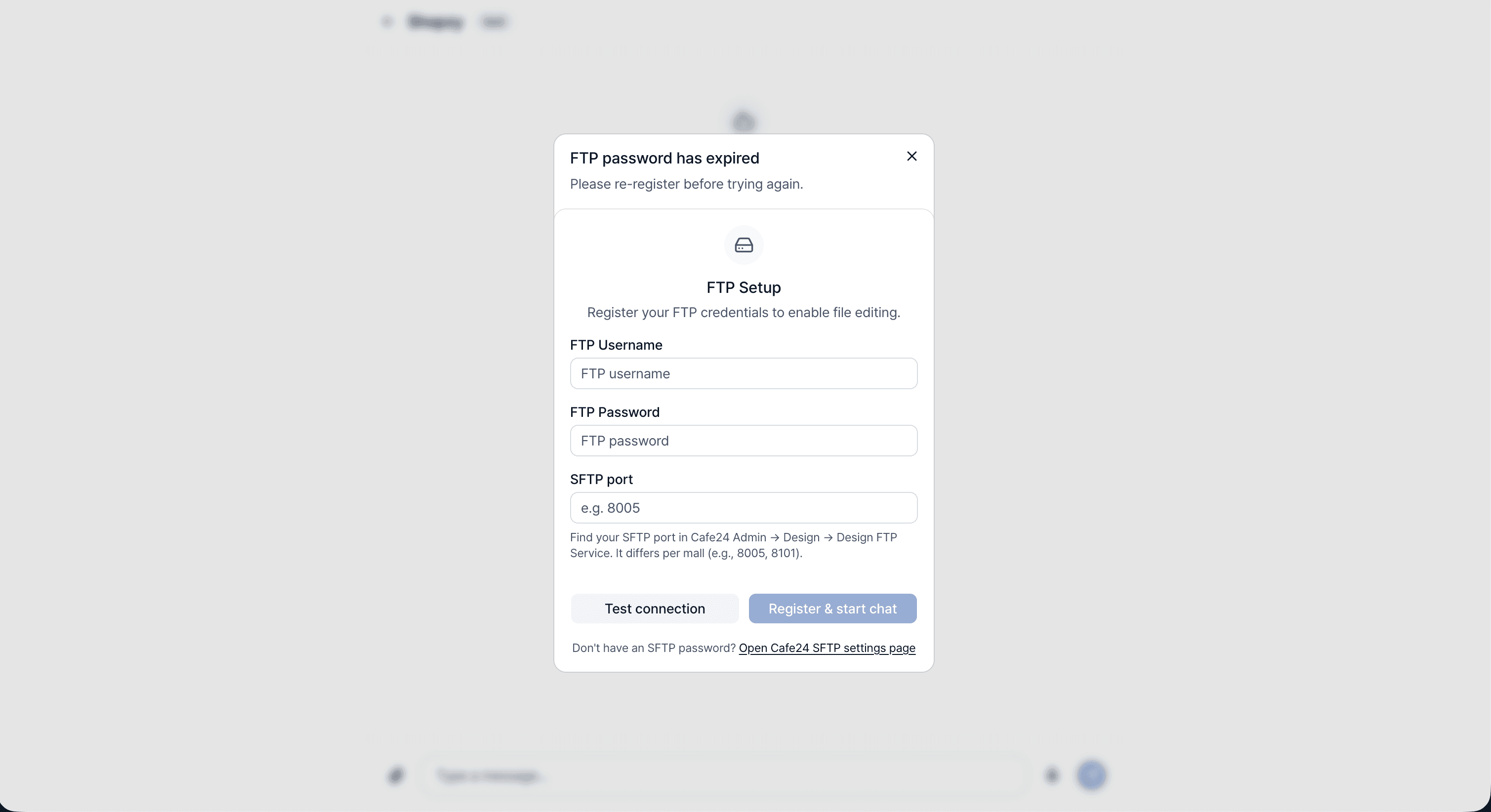
The SFTP registration modal that opens automatically on the chat screen. Get your SFTP password ready
- If you already have one, skip ahead to the next part.
- If it's your first time or the password has expired, click [Open Cafe24 SFTP settings page] at the bottom of the modal. The Cafe24 admin page opens — if you're not logged in, the Cafe24 sign-in screen comes up first. Once signed in, hit [Issue] or [Reissue] to get a new password.
Fill in each field
- [FTP username] — Use your Cafe24 admin ID exactly. It's the same ID you entered when adding the shop (Cafe24 SFTP and admin IDs are the same).
- [FTP password] — Paste the SFTP password you got above. This is not your Cafe24 login password.
- [SFTP port] — Varies by shop (account). Usually
8005or8101. You can find the exact number under Cafe24 admin → Design → Design FTP service.
Once everything's filled in, hit [Register and start chat] to finish.
Verify the connection
Send a message in the chat. If the AI replies, you're connected.
Trouble connecting? → FAQ — My SFTP connection doesn't work